In the account settings section, you can manage basic information about your subscription, billing details, invoices, and the platform language.
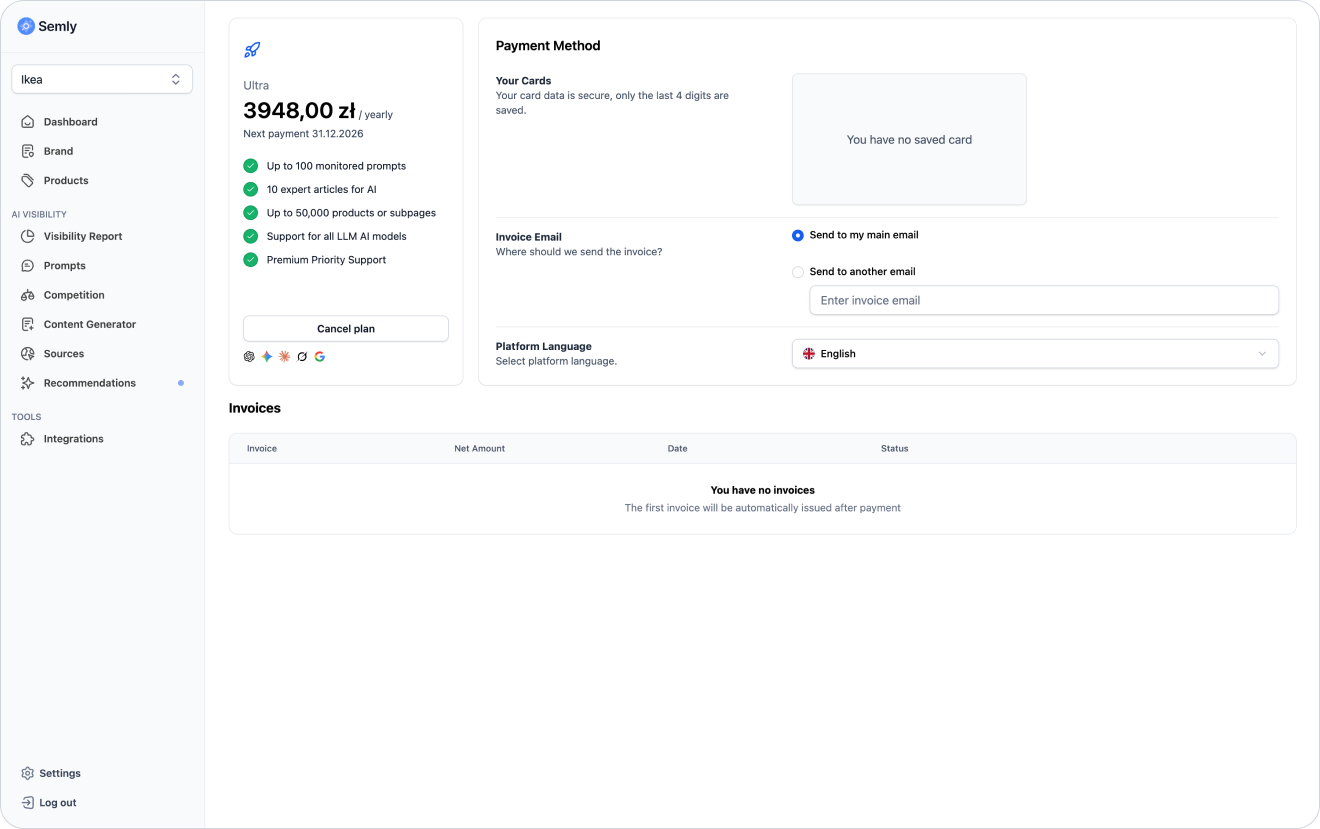
To go to account settings:
Log in to the Semly panel
Click the account icon or go to the Settings
Open the tab related to plan, payments, or invoices
Check information about the active subscription
In the settings, you can find among other things:
active plan
subscription price
next payment date
plan limits
monitored AI models
payment method
email address for invoices
list of invoices
platform language

In the plan section, you'll see info about your current subscription.
Most often, you can find there:
plan name
plan price
billing period
next payment date
available limits
AI models available in the plan
This way you can check which package you’re using and which features are available on your account.
Payments in Semly are handled as a subscription.
Depending on the package you choose, the fee can be charged monthly or yearly.
In the payments section you can check:
active subscription
subscription amount
next payment date
payment method
payment status

In the invoices section you’ll find billing documents linked to your account.
There you can check:
invoice number
issue date
amount
payment status
option to download the invoice
If the invoice isn’t visible right after the payment, check again after a short while or contact Semly support.
In the settings you can enter the email address where invoices and billing information should be sent.
This can be:
the main account address
the accounting department address
the address of the person responsible for payments
another company address
If you want to change or cancel your plan, go to the subscription settings section.
Depending on your account configuration, you can:
check the current plan
change the package
cancel the subscription
check the end date of the billing period
After canceling the plan, access to the service may remain active until the end of the paid billing period.

In your account settings, you can change the language of the Semly panel, if that option is available.
Available languages may include, among others:
Polish
English
Czech
Slovak
German
Spanish
other languages available in the panel
Changing the language affects how the interface is displayed, but it does not change the project’s study region.
I can’t see the invoice
Check if the payment has been completed and if you’re on the right account.
If the invoice is still not visible, write to us at [email protected].
Check your account settings or contact Semly support.
Go to your subscription settings or write to the Semly team.
Check the plan and payments section. If you don’t see this option, contact support.
Quick start with Semly
Initial account setup.
How to complete your brand profile
Learn how to correctly fill in your brand data in Semly so the system can better analyze your company’s visibility in AI answers
How AI monitoring works in Semly
Learn how Semly analyzes AI model answers and why the results can change over time.
Most common questions
Find answers to the most common questions about how Semly works, brand visibility in AI, reports, products, recommendations, and the knowledge base.
In the account and payments section you can check the active plan, limits, invoices, payment method, and billing settings.
Key information:
you can find the active plan in the account settings
invoices are available in the billing section
you can provide a separate email address for invoices
you can change or cancel the plan in the subscription settings