Products are one of the key elements of a project in Semly. Thanks to them, the system can analyze not only the brand itself, but also a specific offer: product names, descriptions, categories, prices, availability and links to product pages.

If you run an online store, adding a product feed file lets Semly better understand what you sell and for which customer questions your products should appear in AI answers.
Google Shopping XML is a product feed file containing information about the products available in your online store.
Most often such a file is already generated by your e-commerce platform or store system, because it’s used, among other things, in Google Merchant Center, product campaigns and price comparison sites.
The file can contain data such as:
product name
product description
price
availability
category
brand
photo
link to the product
product identifier
EAN or GTIN
product variants

AI models are increasingly answering shopping questions in a very specific way. A user no longer asks only about a brand, but about a solution to a specific problem.
Examples of such questions:
Where to buy a bed with storage for a small bedroom?
Which store offers supplements for people who do strength training?
Where can I find natural cosmetics for sensitive skin?
What kind of plastic packaging will work for scrubs and masks?
If Semly has access to up-to-date product data, it can better analyze whether your offer matches such queries and where visibility gaps appear.
Product data helps with the analysis of:
product categories
product names
product descriptions
features and parameters
availability
matching the offer to prompts
content recommendations
visibility compared to the competition

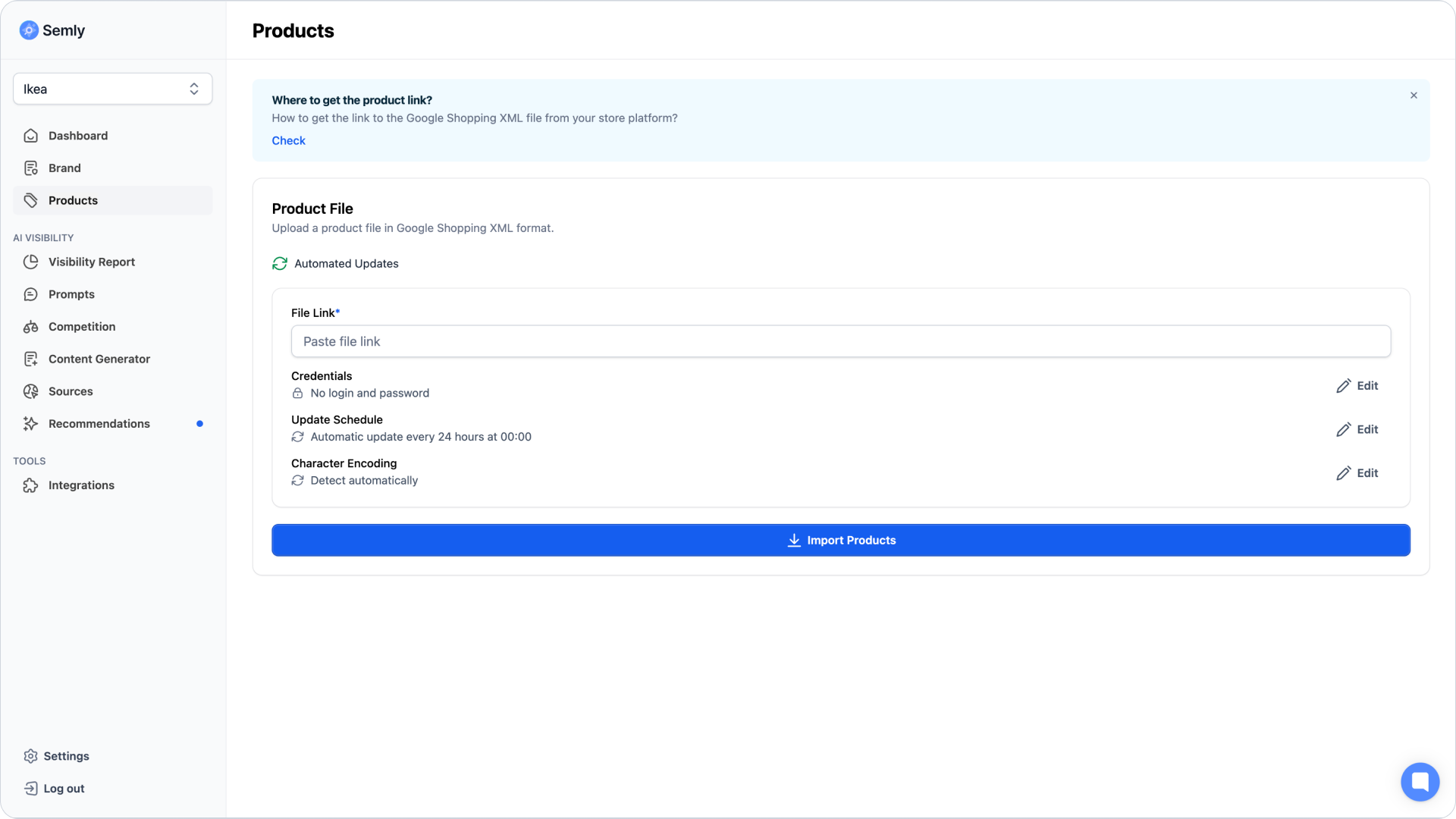
To add products from a Google Shopping XML file:
Log in to the Semly panel
Go to the Products
Paste the Google Shopping XML file address
Set additional import options
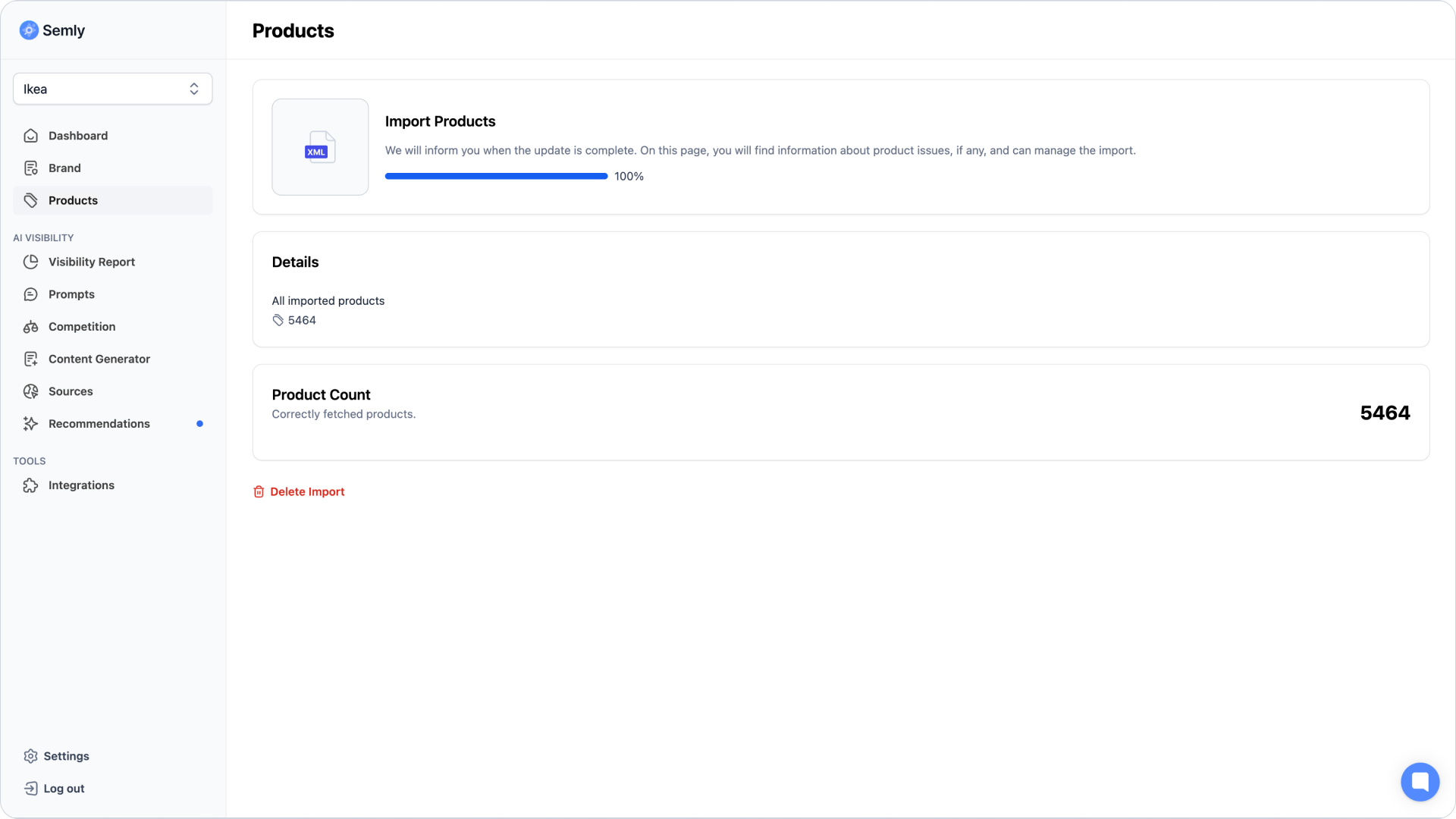
Click Import products
In the file address field, paste the full link to the product file.
Example:
https://yourdomain.com/google-shopping.xmlor:
https://yourdomain.com/feed/google.xmlThe address should lead directly to the XML file containing the products.
Wrong:
https://yourdomain.comCorrect:
https://yourdomain.com/google-shopping.xmlSome product files are protected with a login and password. If your file requires authorization, fill in the access data in the appropriate fields.
In that case, provide:
login
password
In the products section, you can set a schedule for updating the file.
Thanks to this, Semly can periodically fetch current data from the store, e.g. new products, price changes, availability, and updated descriptions.
The schedule can be useful when the following often change:
prices
stock levels
product availability
new products
products withdrawn from the offer
descriptions
categories
If incorrect characters appear in your products, the issue may be caused by the file encoding.
The most commonly recommended encoding is:
UTF-8Incorrect encoding can cause problems with Polish characters, product names, or descriptions.
Example issues:
missing Polish characters
weird symbols in descriptions
cut-off product names
unreadable categories
If you want to check whether the file has the correct structure, pay attention to a few basic elements of the Google Shopping XML format.
The file header should look like this:
<rss version="2.0" xmlns:g="http://base.google.com/ns/1.0">Every product should be placed inside the <item> tag with a set of required and optional elements.
Most important product tags:
<g:id> – unique product identifier
<title> – product name
<description> – description
<link> – URL address to the product page
<g:image_link> – main image
<g:price> – price with currency (e.g. "99.00 PLN")
<g:availability> – availability (e.g. in stock)
<g:condition> – product condition (e.g. new)
<g:mpn>, <g:brand>, <g:shipping> – additional data, if available
If you don’t know where to find the link to the Google Shopping XML file, use a separate guide prepared for popular store platforms. There you’ll find tips on how to generate or find the product feed and then add it in Semly.
Jak dodać produkty lub plik Google Shopping XML
Dowiedz się, jak dodać produkty do Semly za pomocą pliku Google Shopping XML lub gotowej integracji i dlaczego aktualne dane produktowe są ważne dla analizy widoczności marki w AI.
A good product file should contain complete and up-to-date information about the products.
The most important fields are:
product name
product description
product link
product photo
price
availability
product category
brand
product identifier
EAN or GTIN
variants
product features
Not every file has to contain all fields, but the more useful data, the better the analysis context.
Product names should be specific and easy to understand.
A good name should include:
type of product
brand or manufacturer
model
the most important parameter
variant
capacity or size
use or application
Weak name:
Product 1234
Better name:
OLIMP Gold Omega 3 1000 mg 90 capsules
Weak name:
White cabinet
Better name:
White TV cabinet with drawers 140 cm for the living room
A product description should explain what the product is, who it’s for, and when it’s worth choosing.
A good product description should include:
product application
key features
benefits for the customer
material or composition
size or capacity
compatibility
information about variants
how to use
limitations or important notes
Example of a weak description:
High-quality product for demanding customers
Example of a better description:
Double bed with bedding storage designed for bedrooms and small apartments. The model combines a sleeping function with extra storage space. It works well for people who want to save space without giving up comfort.

If the product import fails, check the most common causes.
Possible problems:
the link doesn’t lead directly to the XML file
the file isn’t publicly available
the file requires a login and password
the login details are incorrect
the file is empty
the file contains technical errors
the file has unsupported encoding
the server blocks access to the file
the XML address has been changed
the file contains very outdated data
access to the file is blocked for Semly servers
The simplest test is to open the file URL in your browser.
Check:
whether the link opens
whether you see the XML structure
whether the file contains products
whether a 404 error doesn’t appear
whether a message about lack of access doesn’t appear
whether the browser doesn’t redirect you to the login page
whether the products have up-to-date data
If the link doesn’t work in the browser, Semly most likely won’t be able to fetch the data either.
If you use a ready-made integration, e.g. with an e-commerce platform, products can be fetched automatically.
In that case, you don’t always have to manually add the Google Shopping XML file.
The available options depend on the project configuration and the platform you use.
You can use:
a ready-made integration
a Google Shopping XML file
a file protected with a login and password
automatic product updates
No. Adding products via a Google Shopping XML file doesn’t require installing scripts or modifying the store’s code.
Semly fetches data from the product file and analyzes it in the panel.
The product file should be updated whenever the store’s offer changes.
The most important changes are:
new products
removed products
price changes
availability changes
new categories
description changes
product name changes
new photos
changes to product URLs
If the file is updated automatically on the store’s side, Semly can fetch the latest version according to the set schedule.
To make the product data as useful as possible, take care of the quality of the file.
Most important rules:
use up-to-date product names
add specific descriptions
fill in the categories
make sure links are correct
provide up-to-date prices
keep availability updated
add product photos
avoid empty descriptions
avoid duplicates
check encoding correctness
don’t change the XML file address too often
Check out the other articles in the Help Center to get to know configuration, reports, and recommendations in Semly better.
How to create prompts and topics
Learn what prompts are in Semly, how to create good questions for AI monitoring, and how to organize them into topics.
How to add competition
Learn how to add competitors in Semly and how to use competition analysis to check brand visibility in AI answers.
How to read the Visibility Report
Learn how to analyze the Visibility Report in Semly and check how your brand shows up in AI answers.
How to read Semly recommendations
Learn how to use Semly recommendations and turn AI analysis results into concrete actions that improve brand visibility.
How to generate your first article
Learn how to generate your first article in Semly and use it to build brand visibility in AI answers.
How to get a link to the XML file from your store platform
Learn how to generate a link to a Google XML file from popular e-commerce platforms like Shopify, WooCommerce, Shoper, or Baselinker.
Adding products or a Google Shopping XML file helps Semly better understand the store’s offer and analyze it in the context of questions asked to AI models.
Most important rules:
add a direct link to the Google Shopping XML file
make sure the file is accessible
add a login and password if the file is protected
set an update schedule
take care of the quality of product names and descriptions
update your offer regularly
check for import errors
use integrations if they’re available for your platform